Most of us are familiar with API testing tools like Postman, SoapUI, etc, and API automation libraries like RestAssured and Karate to automate API test cases. A recent entrant in this category is Playwright. The playwright is an Automation Tool provided by Microsoft. It provides cross-browser testing using which we can perform testing on multiple browsers like Chromium, Webkit, Firefox, etc. playwright supports cross-language testing (Java, Node.js, Python, .NET, etc.). However, very few of us know that it can actually do an API Test automation of methods GET, PUT, POST, and DELETE. Let’s see how it can be done.
Can we perform API testing using Playwright?
The playwright provides inbuilt support for API testing that’s why we don’t need any external libraries to handle API. The playwright doesn’t use any browser to call API. It sends requests using Node.js which provides faster execution.
In this tutorial, we will explore basic API methods with the help of Playwright- java. Below are the Four methods.
GET
POST
PUT
DELETE
Pre-requisite:
To get started with API automation with playwright-java first we need playwright to be installed in your system, to do this we can simply add the following dependency in the pom.xml file.
Along with the playwright, we have to add Testing and JSON dependencies.
Now let’s see how we can start API automation testing with Playwright-java.
1. GET:
By providing an API endpoint we can read data using a GET request. We must pass a few parameters to get the required data from the API.
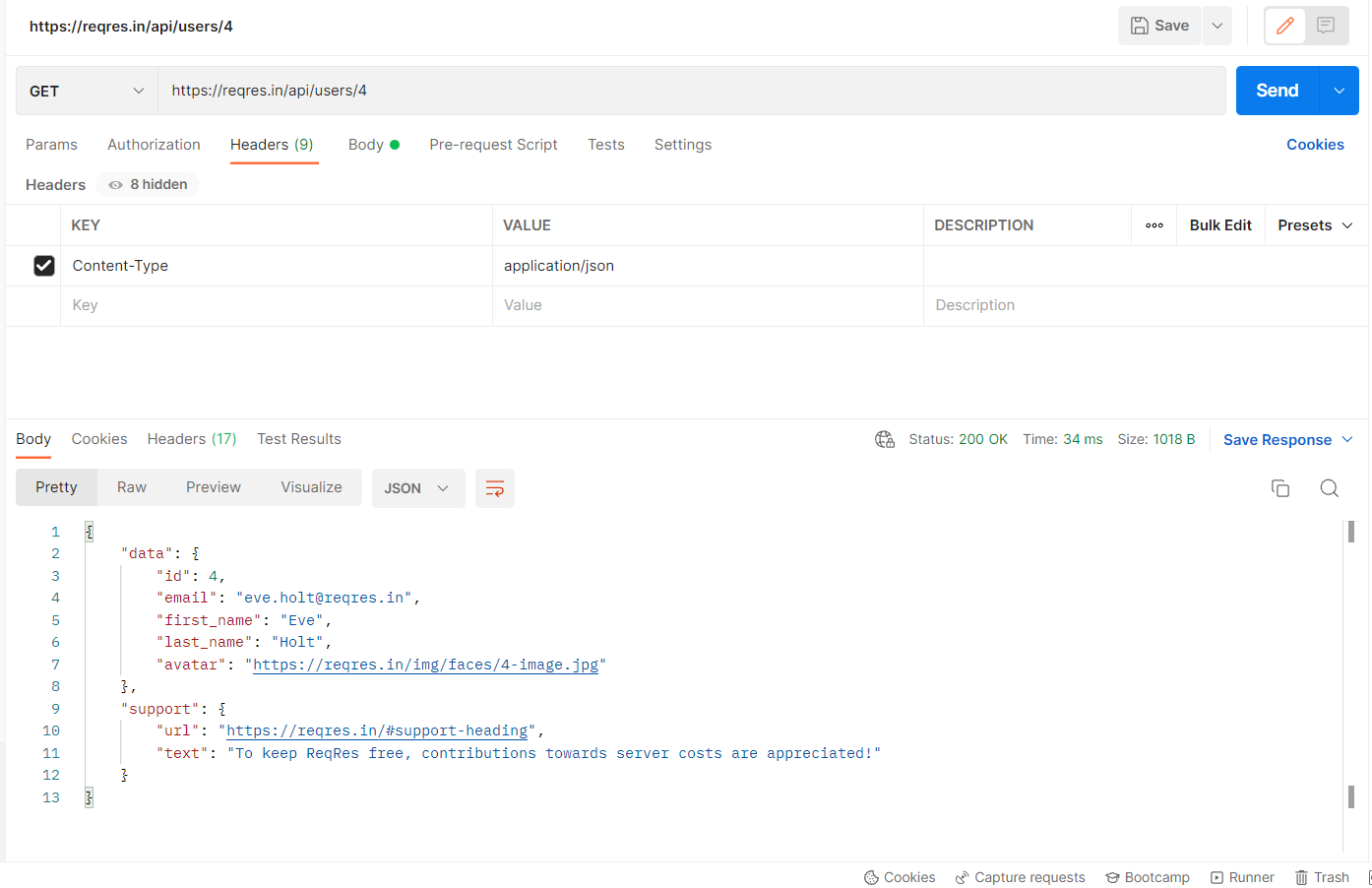
We can verify the request by asserting the Response Code. The response code for a successful GET Request is 200. You can also assert a text inside the JSON body response.
For Example, I am using postman here to send a GET request to ” ‘/api/users/4’ endpoint of a sample API URL ‘https://reqres.in’
The below code shows the implementation of the GET method through Playwright.
To verify the response data we are parsing the response to JSON Object so that we can verify specific key-value pairs.
2. POST:
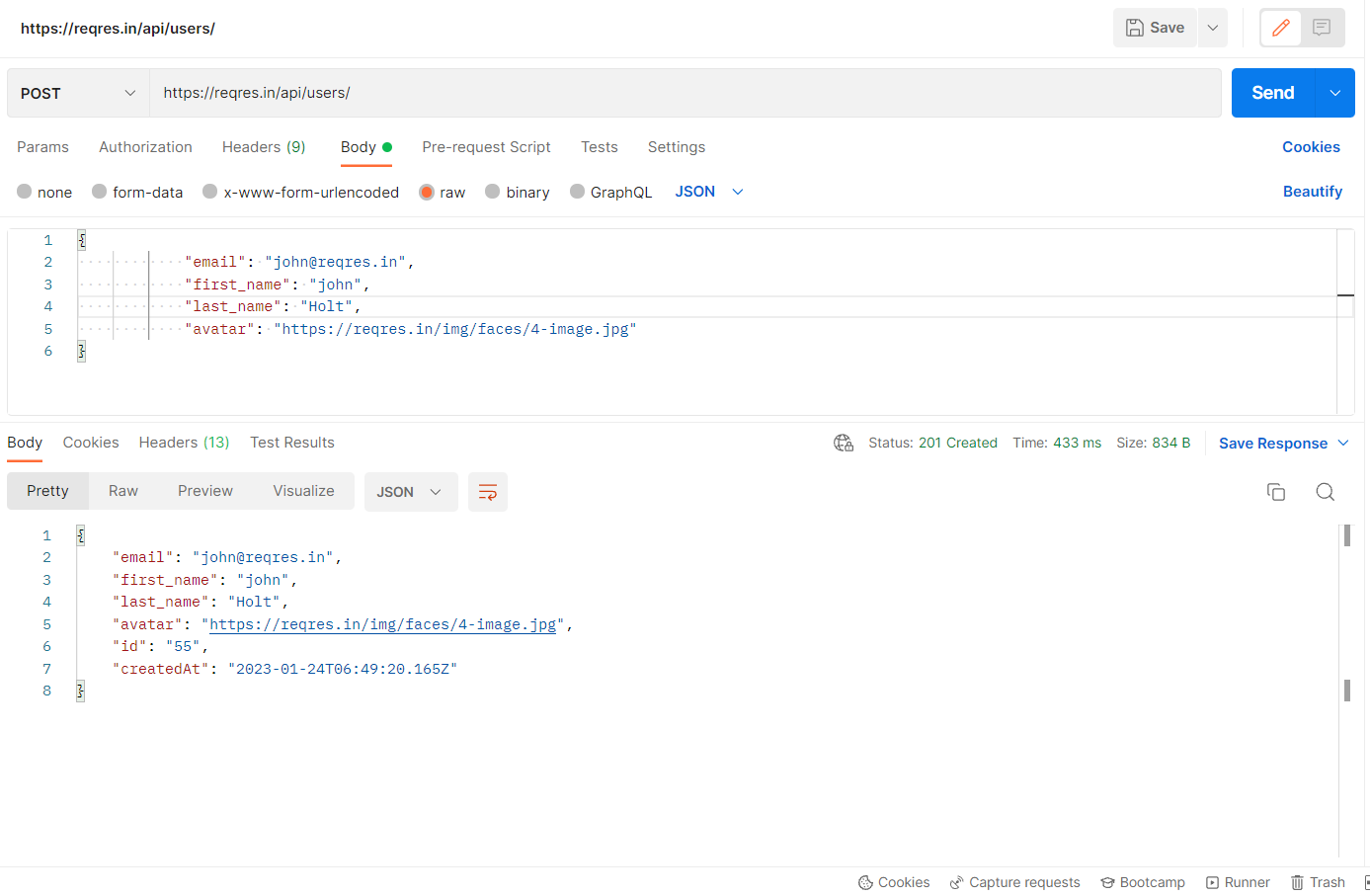
POST method is used to add a new record via API where we have to pass data as payload ex. first name, last name, etc. The response code for a successful POST Request is 201.
For example, I am sending a POST request to ‘/api/users/’ endpoint with base URL ‘https://reqres.in‘ and the body as given below in the screenshot:
To pass the data payloads to the POST/PUT method, first, we have to create a POJO class which will help to create methods to get and set payloads. below we have created a POJO class employee which will help to get and set data to both POST and PUT calls.
public class Employee {
// private variables or data members of pojo class
private String email;
private String first_name;
private String last_name;
private String avatar;

public String getEmail() {
   return email;
}
public void setEmail(String email) {
   this.email = email;
}
public String getFirstName() {
   return first_name;
}
public void setFirstName(String firstName) {
   this.first_name = firstName;
}
public String getLastName() {
   return last_name;
}
public void setLastName(String lastName) {
   this.last_name = lastName;
}
public String getAvatar() {
   return avatar;
}
public void setAvatar(String avatar) {
   this.avatar = avatar;
}
}
The below code will help you with the POST method through Playwright.
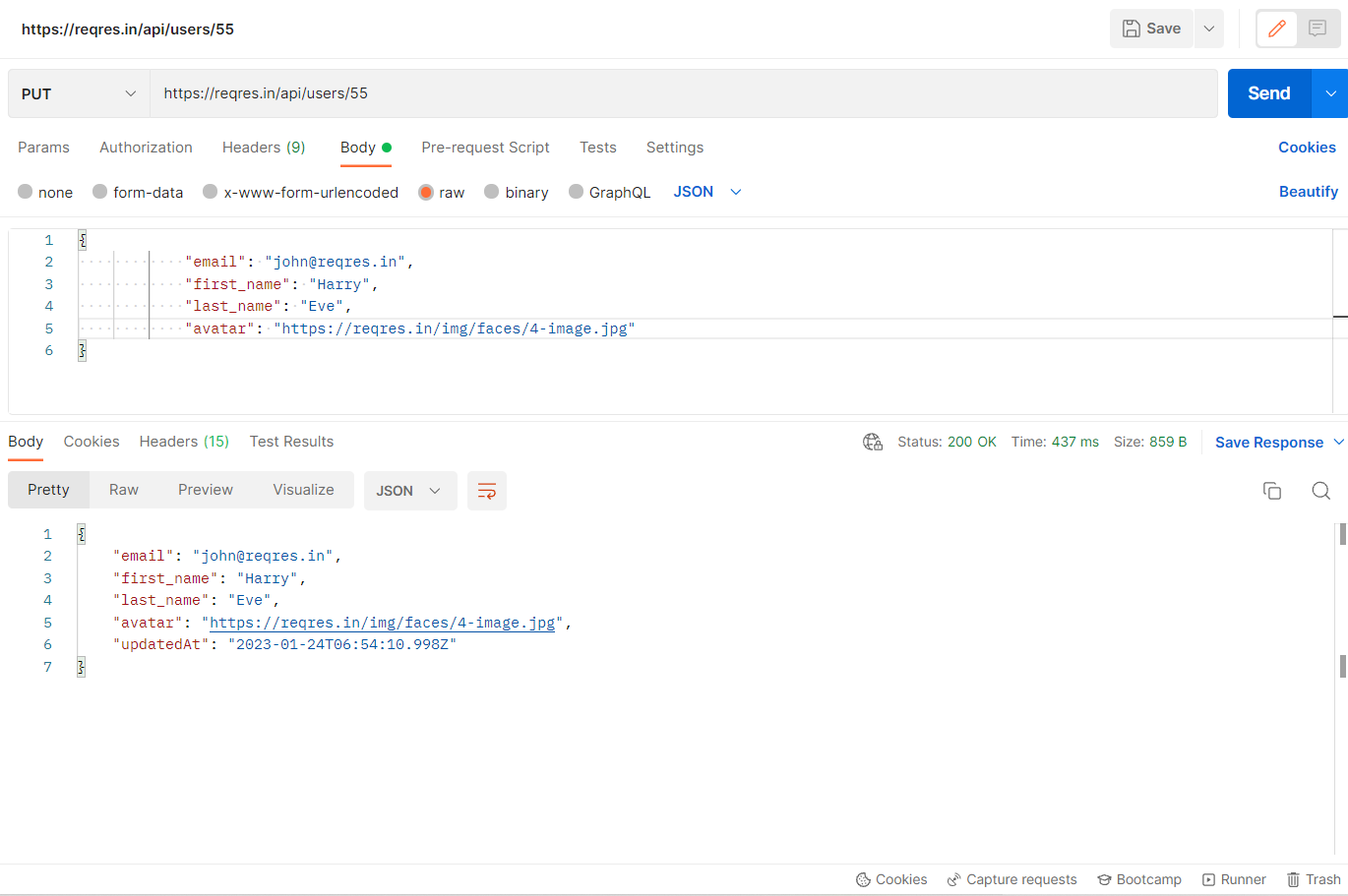
PUT Request is used to update the existing records via the API. we have to pass the data we want to update as a payload ex. first name, last name, etc. The response code for a successful PUT Request is 200.
For example, I am sending a POST request to ‘/api/users/55’ endpoint with the base URL ‘https://reqres.in’ and the body as given below in the screenshot:
The below example shows the implementation of the PUT method. We need to use the above POJO class to pass the data as a payload to the PUT call.
We can delete existing records using the API by using DELETE Request. Ideally, you must have added a record before you delete it. Hence you would need to append an ID to the DELETE URL. To delete the record using API first we need to pass the record URI (Universal Resource Identifier). The response code for a successful DELETE Request is 200.
For example, I am sending a POST request to ‘https://retoolapi.dev’ endpoint with base URL ‘/3njSPM/calc/43’ and the body as given below in the screenshot:
Following is the code for the DELETE method in Playwright
After performing a DELETE call we can perform a GET call on the same endpoint to verify data is actually deleted. For this GET call, we will get response code 204 as the content is not found.
GET, PUT, POST, and DELETE are the basic CRUD API methods used in any Web application. With the help of the inbuilt functionalities of Playwright, API Automation Testing became much easier and faster.
Priyanka is an experienced SDET with 4+ years in functional, regression, and mobile testing across IoT, Life Sciences, and HCM domains. She excels in building automation frameworks using Selenium, Playwright, Appium, and Cucumber, with strong skills in API testing (Postman, Rest Assured) and database validation (MySQL, PostgreSQL). ISTQB certified and proficient in agile environments, she ensures high-quality delivery through automation, cross-browser testing, and CI/CD integration.
Hello! In this blog, I will be exploring how to automate tests using Taiko with Cucumber in JavaScript. The Taiko tool is easy to automate and is very reliable, and it works faster to execute and run test cases. It is a user-friendly tool as well.
What is Takio?
A Taiko is an automation tool that is available for free and it is an open-source browser automation tool. It is built by the ThoughtWorks team. It uses the Node.js library to automate the chrome browser. Taiko is very useful to create maintainable and highly readable JavaScript tests.
Taiko Features:
The Taiko was explicitly built to test modern web applications.
The features of Taiko that set it apart from other browser automation solutions are listed below.
Easy Installation
Interactive Recorder
Smart Selectors
Handle XHR and dynamic content
Request/Response stubbing and mocking
We can use Taiko on three platforms:
Windows
macOS
Linux
How to install Taiko?
A Taiko is available on npm: You can use the following NPM command to install the taiko on your system.
npm install -g taiko
What is cucumber?
A Cucumber is a testing tool that allows BDD. It offers a way to write tests that everyone, regardless of technical ability, can follow. Before developers build their code in BDD, users (business analysts, product owners) first write scenarios or acceptance tests that describe the system behavior from the perspective of the customer. Such scenarios and acceptance tests then are reviewed and approved by the product owners.
How to install Cucumber?
Basically, cucumber is available on npm: You can use the following NPM command to install the cucumber on your system.
npm install --save-dev @cucumber/cucumber
Getting Started
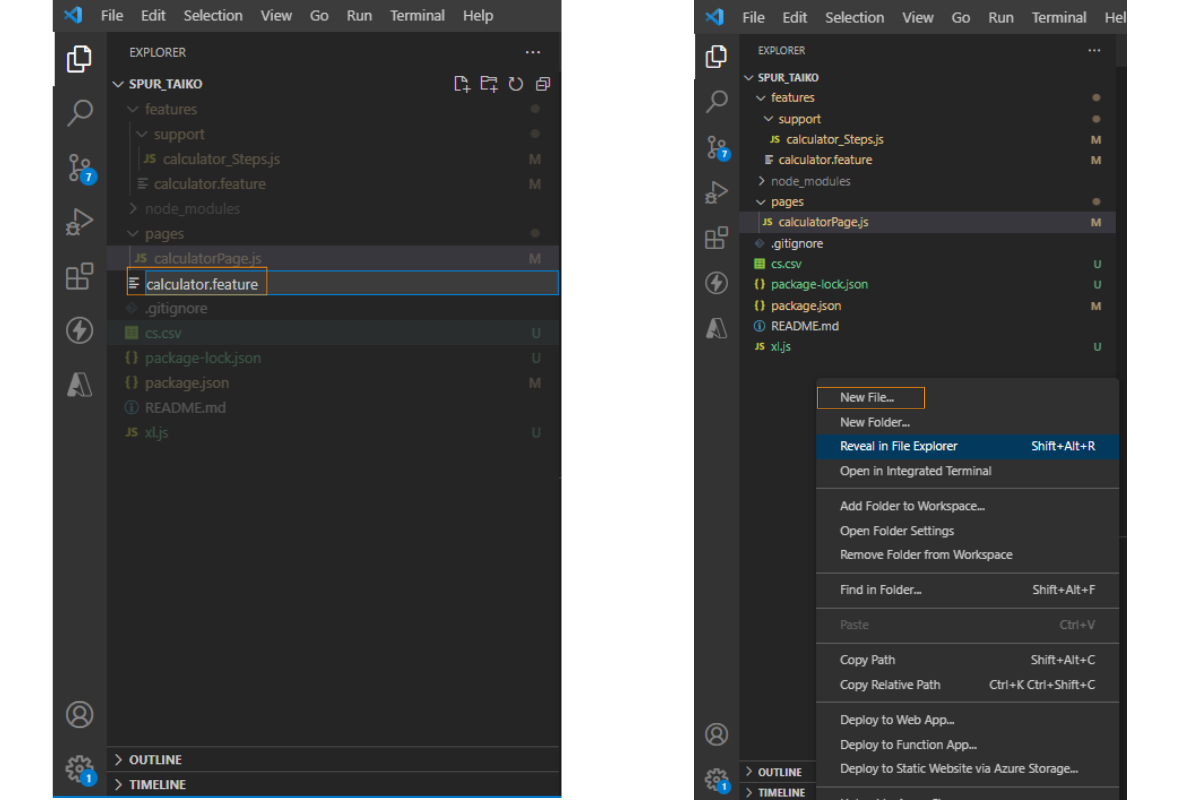
We will be using Visual Studio code to write our test automation code in JavaScript. We will create a feature file first, then click on the left side of the panel and choose “new file” from the menu that appears. Give a file name after that, such as the Calculator. feature
I’ll start out by introducing the Taiko framework, which integrates BDD and Cucumber. You will be guided through the code in the next step.
Feature: Calculator operations
  @smoke
  Scenario: Addition of 2 numbers
    Given I launch calculator application
    When I click on number 2
    And I click on operator +
    And I click on number 2
    Then I verify the result is 4
I’ll describe how to automate the calculator page in this place. The code shown below builds calculator steps where we must import statements provided by cucumber before navigating to the support folder.
After that, we can import the cucumber and assertion statements and that will build a page where all the steps are generally placed.
Basically, this is the step definition file where we need to map the feature file steps and call methods declared in the page file.
After that, we have to import the page file in the step definition file. And we need to call the methods declared in the page file.
Following is the code snippet for the step definition file.
const { Given, When, Then } = require('@cucumber/cucumber')
const calculate = require('../../pages/calculatorPage')
Given('I launch calculator application', async function () {
  await new calculate().launch()
})
When('I click on number {string}', async function (num) {
  await new calculate().click_number(num)
})
When('I click on operator {string}', async function (num) {
  await new calculate().click_operator(num)
})
Then('I verify the result is {string}', async function (num) {
  await new calculate().verify_result(num)
})
Now let’s create a page(We are using Page Object Model (POM) structure here) file where we have to declare the class and all the methods cleaning in step definitions.
And, In the above code snippet, methods contain actions like opening the browser, visiting a website, CSS selectors and actions to be performed on it (click), and Assertions. You may notice that we are doing open browser and close browser actions into this page file itself which is not the best practice. You can move it to Before/After hooks and create a nice framework. However, that is for a later blog 🙂
So, to execute the test case, you can run the following command from the terminal.
npx cucumber-js --publish
Happy testing !!!
Conclusion:
We can automate tests using taiko with Cucumber with JavaScript very easily. Taiko is a very powerful tool and easy to implement. It will definitely compete with Selenium and Playwright in the coming years.
By profession an Automation Test Engineer, Having 3+year experience in Manual and automation testing. Having hands-on experience in Cypress with JavaScript, NodeJS. Designed automation web framework in Cypress, Webdriver.io, Selenium with jest in JavaScript. He loves to explore and learn new tools and technologies.
Any test automation report, without screenshots, would look dull and will not provide enough information on where the test failed. If you add only screenshots, it will make the report information-rich. Now, if your tool has the capability to record the video as well, then it will be cherry on the top. A playwright is an automation tool that has these features integrated in-built. Here we will cover various types of screenshots that can be attached and how to record the video. This blog will help you to learn the steps to include Capture screenshots and videos in java playwright.
Playwright contains the following inbuilt functionalities:
Here, we are exploring the functionality to capture the snapshots and how to attach them to the Cucumber report. You must have the Cucumber report set up in your framework in order to accomplish this.
Let’s, Understand first how to Capture screenshots and videos in java playwright.
1. Page Screenshot:
As you are all aware, we usually use this screenshot to attach what is visible on the screen for verification purposes.
public static List takeScreenShots() throws IOException
    {
	public static byte[] array;
        long millisStart = Calendar.getInstance().getTimeInMillis();
        array = page.screenshot(new Page.ScreenshotOptions().setFullPage(false).setPath(Paths.get("test-output/ScreenShots/" + millisStart + ".png")));
        List output = new ArrayList();
        output.add(array);
        output.add(millisStart + ".png");
        return output;
    }
2. Full Page Screenshot:
If your test requires you to attach a screenshot of the entire page, top to bottom. So this method will guide you easily. The code below helps to take a snapshot of the entire page, no matter how long it is, because setFullPage is set to ‘true’.
public static List takeScreenShots() throws IOException
    {
	public static byte[] array;
        long millisStart = Calendar.getInstance().getTimeInMillis();
        array = page.screenshot(new Page.ScreenshotOptions().setFullPage(true).setPath(Paths.get("test-output/ScreenShots/" + millisStart + ".png")));
        List output = new ArrayList();
        output.add(array);
        output.add(millisStart + ".png");
        return output;
    }
However, now you can see that the full scrollable page has been captured in this step.
3. Element Screenshot:
So here, now you can also capture a screenshot of a specific element with the help of a playwright. In the below code, you can see that a locator path is sent as a parameter to the .screenshot() method.
page.locator("locator of that element").screenshot(new Locator.ScreenshotOptions().setPath(Paths.get("test-output/ScreenShots/screenshot.png")));
Here, we can see that the screenshot has captured only the element given in the locator.
4. Attaching Screenshot to Cucumber Report:
Now, we are going to discuss how to attach these screenshots to the cucumber report.
The first step is to set up your framework for the cucumber report, and this blog does a great job of explaining how to do that. This will allow you to add a screenshot to the Cucumber report using the code below. In general, this code is placed in your after hooks (AfterScenario, AfterStep, After). In the code below, I recently added a current millisecond time as the file name. However, you can customize the file names to your choice.
public void screenshots(Scenario scenario) throws IOException
    {
        WebUtil.takeScreenShots();
        long millisStart = Calendar.getInstance().getTimeInMillis();
        scenario.attach(array, "image/png",millisStart+".png" );
    }
Therefore, you can now view the Cucumber report with the screen attach to the report. while you click on the expand icon, You may see the screenshot as well.
5. Video Recording:
Now, here the playwright has the ability to record the video which will make it easier for the tester to understand their execution results. Then we’ll see how you fit that video into your report.
First, you must declare the context properties on your browser as shown in the below code. Or, you can simply update your context option where you can begin your context on the browser. Typically this method is called inside Before hooks.
Now the above code will help you to record the video and it’s going to execute the test. After that, it will automatically be stored on the path which is shown in the code. Moreover, you must see that the context of your browser is closed after it will be stored.
The below lines of code demonstrate how to convert a recorded video into bytes. These bytes can then be used to attach the recorded video to a report or perform other operations.
public static byte[] encodeVideo(Path path) throws IOException {
    FileInputStream fis = new FileInputStream(String.valueOf(path));
    ByteArrayOutputStream bos = new ByteArrayOutputStream();
    byte[] b = new byte[1024];

    for (int readNum; (readNum = fis.read(b)) != -1; ) {
        bos.write(b, 0, readNum);
    }

    byte[] bytes = bos.toByteArray();
    return bytes;
}
After recording it from your project structure, you must use the following code to attach the video to the cucumber report. The tearDown method’s execution video attaching code is described below. This code will be easier to perform once the tearDown method has been completed and your video has been recorded and attached to the report. Normally, this teardown method is written using After hooks.
Now, the screenshots and videos will appear in the cucumber report as shown in the picture below. This video will be available as part of the report.
Conclusion:
Here, we see that the playwright automation tool allows us to take several screenshots as needed. How to record Capture screenshots and videos in java playwright which can help you to identify failures’ underlying causes without having to look at the report itself.
Swapnil is an SDET with 1+ years of hands-on experience in Manual, Automation, and API testing. The technologies I have worked on include Selenium, Playwright, Cucumber, Appium, Postman, SQL, GitHub, Java, and Python. Also, I love Blog writing and learning new technologies.
What is the Robot class? and why I must use robot class in my Selenium automation framework as a Selenium automation engineer.
Hello, my name is Vishal, and in this blog, I will explain why you should use robot class. I was working on a project for one of our clients, and I was asked to test the web-file application’s upload feature. There was a button, and once we click the button, a window pop-up appeared, and I was asked to upload the file to the server of that web application. I was able to automate up until the button clicking part through selenium, but I was unable to automate the window’s pop using Selenium. I tried almost everything to automate that pop-up but failed. After doing some research, I got to know that we cannot use the Selenium application to automate the windows pop-ups.
Then I did more research on the subject and got to know about the Robot class.
What is Robot Class?
Before we start talking about how to use the robot class, we will first learn the basics of the robot class.
We deal with popups and alert many times in the java selenium web automation, using a method like a driver.switchTo(). Most of them can be easily handled using submethods like a driver.switchTo().alert().dismiss() or driver.switchTo().alert().accept() methods. But what if the pop-ups are system-generated, as shown in the following image?
As these pop-ups are not related to the webpage or browser, selenium will not be able to handle these pop-ups. In that case, we use robot class to tackle these situations.
Selenium’s Robot Class is used to enable automated testing for Java platform implementations. It generates input events in native systems for Test Automation, Self-Running Demos, and other applications that require mouse and keyboard control. It is simple to implement and integrate with an automated framework.
So this was about the introduction. In the next section of this, we will learn how to use that.
How to use robot class in selenium?
To understand how to use robot class in selenium, I am using this website. This website allows you to upload sample files.
So, before we begin automating, we must first comprehend the operation that will be carried out on this application. My primary goal here is to upload a text file from my machine’s download folder to the server of that web application. On that webpage, there is a button, and when we click it, a window appears, and I am asked to select the file that I want to upload to the server.
As previously stated, we will be able to automate up to the button-clicking stage, but we will be unable to control the windows pop-up using Selenium.
So, to control that part, we’ll use the robot class. You can use the following code.
public static void main(String[] args) throws AWTException, InterruptedException {
//Initialize the Web-driver
driver = driverSetUpForChrome();
driver.get("https://cgi-lib.berkeley.edu/ex/fup.html");
String title = driver.getTitle();
System.out.println("Title of the page is "+ title);
// Locate the upload button
WebElement uploadButton = driver.findElement(By.xpath("//form//input[@Name=\"upfile\"]"));
StringSelection s = new StringSelection("C:\\Downloads\\SampleText.txt");
// Clipboard copy
Toolkit.getDefaultToolkit().getSystemClipboard().setContents(s,null);
Actions actions = new Actions(driver);
actions.click(uploadButton).build().perform();
WebElement noteFiled = driver.findElement(By.xpath("//form//input[@Name=\"note\"]"));
actions.click(noteFiled).sendKeys("Uploading the text file.").build().perform();
WebElement pressButton = driver.findElement(By.xpath("//form//input[@type=\"submit\"]"));
actions.click(pressButton).build().perform();
}
public static WebDriver driverSetUpForChrome() {
WebDriverManager.chromedriver().setup();
WebDriver driver = new ChromeDriver();
return driver;
}
public static void quitDriver() {
driver.quit();
}
}
When you run the above code, a pop-up window similar to the one shown below will appear on your screen. The system will prompt you for a file name here. In this case, we’ll use the robot class to select the file to upload to the server.
To do so, we must first copy the file to the clipboard. Which we can do with the following line of code.
StringSelection s = new StringSelection("C:\\Downloads\\SampleText.txt");
// Clipboard copy
Toolkit.getDefaultToolkit().getSystemClipboard().setContents(s,null);
So, using the toolkit class, we copied the path to a string, which we need to paste into the pop window’s file field. We already know that we can copy and paste the content into fields by pressing the keyboard’s control and V buttons. Using the robot class, we will do the same thing.
To paste the copied file path, use the code below.
Now, after pasting the file path, we need to press the enter key to select the file. we can do with the code below.
r.keyPress(KeyEvent.VK_ENTER);
//releasing enter
r.keyRelease(KeyEvent.VK_ENTER);
We have successfully uploaded the file to the server in this manner.
So this is how we can use the robot class to handle window pop-ups.
The complete code is provided below.
//import dev.failsafe.internal.util.Assert;
import io.github.bonigarcia.wdm.WebDriverManager;
import org.openqa.selenium.By;
import org.openqa.selenium.WebDriver;
import org.openqa.selenium.WebElement;
import org.openqa.selenium.chrome.ChromeDriver;
import org.openqa.selenium.interactions.Actions;

import java.awt.*;
import java.awt.datatransfer.StringSelection;
import java.awt.event.KeyEvent;

public class SeleniumExample {


    private static WebDriver driver = null;
public static void main(String[] args) throws AWTException, InterruptedException {
//Initialize the Web-driver
driver = driverSetUpForChrome();
driver.get("https://cgi-lib.berkeley.edu/ex/fup.html");
String title = driver.getTitle();
System.out.println("Title of the page is "+ title);
// Locate the upload button
WebElement uploadButton = driver.findElement(By.xpath("//form//input[@Name=\"upfile\"]"));
StringSelection s = new StringSelection("C:\\Downloads\\SampleText.txt");
// Clipboard copy
Toolkit.getDefaultToolkit().getSystemClipboard().setContents(s,null);
Actions actions = new Actions(driver);
actions.click(uploadButton).build().perform();
Robot r = new Robot();
//pressing enter
//pressing ctrl+v
Thread.sleep(1000);
r.keyPress(KeyEvent.VK_CONTROL);
r.keyPress(KeyEvent.VK_V);
//releasing ctrl+v
Thread.sleep(1000);
r.keyRelease(KeyEvent.VK_CONTROL);
r.keyRelease(KeyEvent.VK_V);
//pressing enter
r.keyPress(KeyEvent.VK_ENTER);
//releasing enter
r.keyRelease(KeyEvent.VK_ENTER);
WebElement noteFiled = driver.findElement(By.xpath("//form//input[@Name=\"note\"]"));
actions.click(noteFiled).sendKeys("Uploading the text file.").build().perform();
WebElement pressButton = driver.findElement(By.xpath("//form//input[@type=\"submit\"]"));
actions.click(pressButton).build().perform();
}
public static WebDriver driverSetUpForChrome() {
WebDriverManager.chromedriver().setup();
WebDriver driver = new ChromeDriver();
return driver;
}
public static void quitDriver() {
driver.quit();
}
}
More about Robot Class Methods and Use:
In this section, we will learn more about the feature and its uses.
Robot robot = new Robot();
At this line, we are initializing the robot class.
keyPress():
For example robot.keyPress(KeyEvent.VK DOWN): This function is one keyword and that keyword is the name of the button that you want to press. For example, if you want to press button V then you will have to pass the following object:
KeyEvent.VK_V
mousePress():
For example, robot.mousePress(InputEvent.BUTTON3 DOWN MASK) will perform a right mouse click.
mouseMove():
For example, robot.mouseMove(point.getX(), point.getY()) will move the mouse cursor to the X and Y coordinates supplied.
keyRelease():
For example, robot.keyRelease(KeyEvent.VK DOWN): This method releases the Keyboard’s down arrow key. If there are any keys that you have pressed using the KeyPress function, then you can use this function to release those keys. – mouseRelease(): For example, robot.mouseRelease(InputEvent.BUTTON3 DOWN MASK): This method will release your mouse’s right click.
Conclusion:
So, in this way, we learned about the robot class and its application in this blog. I hope you got the information you were looking for. please share it with your testing squad, and if you have any suggestions or questions, please leave them in the comment section.
Vishal is proficient in a variety of programming languages, including Python, Java, and Javascript, C++, Jpython, C. He has also worked on a number of testing technologies, such as playright, selenium, and helenium. He is an tie loathing adventurer and thrill seeker, who believes in turning ideas into reality…
With Cypress 10 we can automate Single Sign On with Multi-Factor Authentication enabled. The new feature of Cypress 10 helps us to visit multi-domain in a single test. Now the cy.origin module helps us to do the same. We can visit the Single Sign-On site and make users authenticate and redirect to our main application domain. But usually, people find it difficult to automate Single Sign On-based applications and have multi-factor authentication for security. This Blog will help us to overcome both the challenges of Single Sign On with Multi-Factor Authentication using Cypress 10 and using a session that will make our test fast, saves time of login, and authenticate once login multiple times.
Test Goal: Automate Office 365 using Cypress 10
To Overcome both the challenges of SSO and the MFA using Cypress 10 and using session.
What are the test requirements?
Cypress 10 installed.
The secret key for Office 365 account.
And one npm package.
Let’s start the recipe.
How do I get a secret key for an office 365 account to generate OTP:
6th Choose the authenticator app option
7th Click on the link I want to use a different authenticator app
8th Click on next
9th Click on the button can’t scan the image
10th Copy the secret key and paste it and click on next.
Installing NPM packages required using one of the below methods:-
npm i -D cypress-OTP
yarn add -D cypress-OTP
Single Sign On with Multi-Factor Authentication using Cypress 10
We are all set for the next steps now next part is in VS code
Open VS code
Solution:
Go to supports/command.js
This is a custom command, we can use this command anywhere in the cypress test. We have to add parameters such as name, Email id, password, and token as a secret which we extracted for office 365 accounts. “login” is the command name we can use using cy.login()in our test.
Here we have to click on the button which navigates us to the office 365 pages where we have to authenticate the user. This landed us on the office365 SSO page.
cy.get('.microsoft').click()
The new feature for Cypress 10 is cy.origin which helps us navigate to multi-domain in the same test. Here we will pass the login URL for office 365.
Now we have to pass the secret key which we have extracted in the above steps and pass it to the OTP-generate task. This step is responsible for generating the secret.
Now we have to use this custom command in our test. Generally, we have to log in each time before the actual test. So we can use Cypress hooks ‘before’ and ‘before each’ hook.
Let’s see the code
Create a file and name it ‘beforeafter.js’ inside the Cypress folder. And paste the below Code
before(() => {
Here, we are creating the session
cy.session('1', () =>{
This is a custom command we are calling in the command.js file. It passes all required parameters like email, password, and Secret key.
We are successfully able to automate login to the application through SSO and automate MFA and reduce the login time using a session in Cypress. Here is a link to another good read around the same topic.
By profession an Automation Test Engineer, Having 3+year experience in Manual and automation testing. Having hands-on experience in Cypress with JavaScript, NodeJS. Designed automation web framework in Cypress, Webdriver.io, Selenium with jest in JavaScript. He loves to explore and learn new tools and technologies.